In this article · 8 sections
Last week we looked at why so many kids keep their phone in the bedroom at night, and how to lock it on a schedule. Many of you wrote back with the same reply: “Great idea. But I don’t have the energy to click through settings at 9 pm.”
Fair enough. So this post is about the shortcut we mentioned at the end of that article: My assistant, the setup helper in the SafeLagoon parent portal. Instead of hunting for the right menu, you type or say what you want in plain words, check a short summary, and tap Approve. Here’s how it works, what to ask, and a few tips so your rules come out exactly the way you meant them.
What is My assistant?
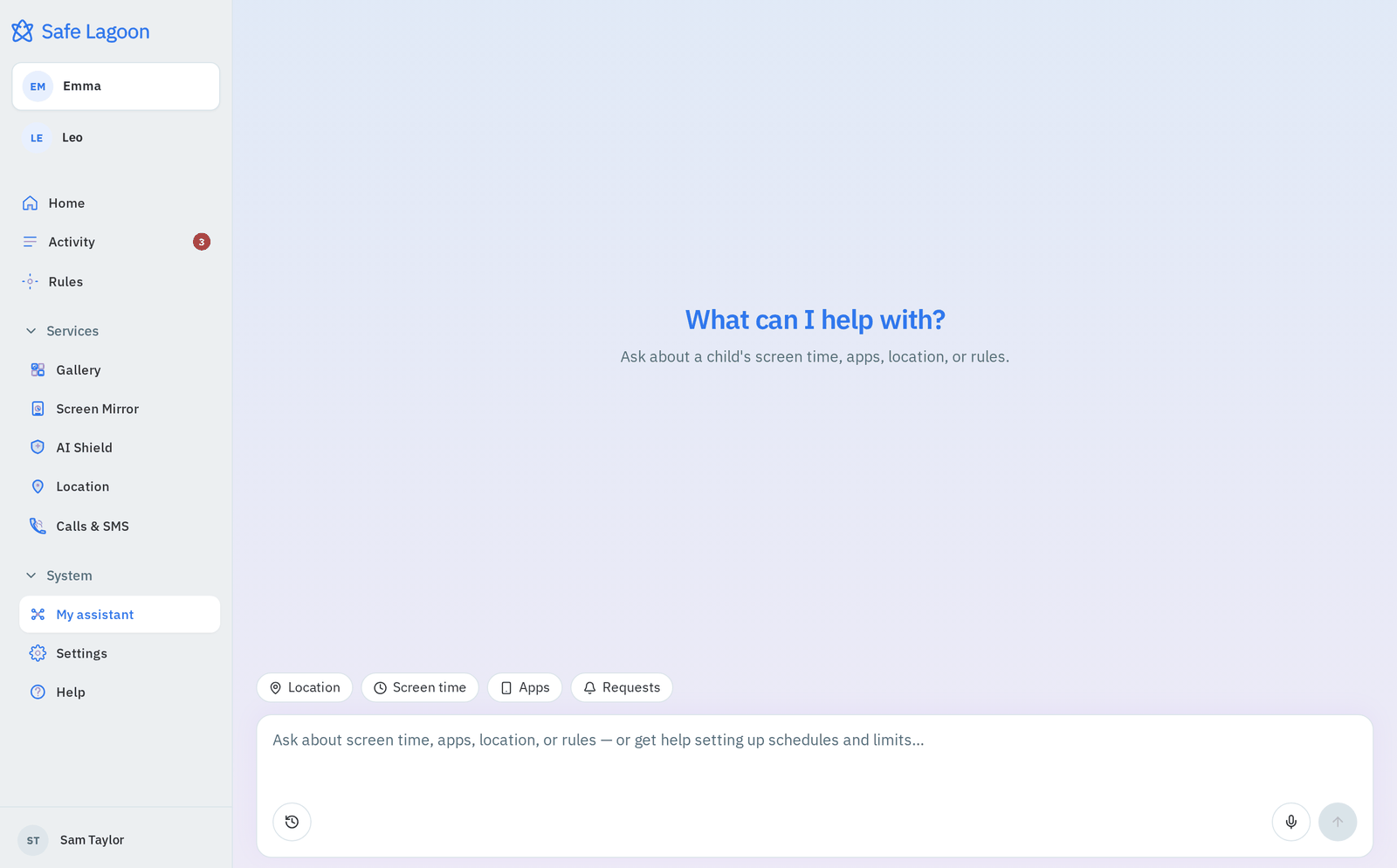
My assistant is a setup helper for parents inside the SafeLagoon web portal. Open app.safelagoon.com, choose My assistant in the sidebar, and you’ll land on a simple welcome screen that asks “What can I help with?”, with a few topic chips to start from, a message box and a microphone button.
It understands everyday requests like “No games after 8 on school nights” or “How much time does Emma have left today?” It then turns them into the same SafeLagoon settings you could create by hand. A bedtime set by the assistant shows up in the regular Schedules list on the Screen Time page, so you can always see it, edit it or delete it later the usual way.
My assistant is included in Premium, and in the 3-day Premium trial while it’s active.

What you can ask it to do
Think of it as a helper who knows where every setting lives. From one plain sentence it can:
- Create, change, pause or delete blocking windows (schedules), including overnight ones such as 21:00 to 07:00. A window can block all apps, the internet, or calls.
- Set daily limits, for example two hours a day at weekends.
- Block or unblock a specific app.
- Switch lock mode or play mode when you need the phone off right now, or want to relax the rules for a while.
- Answer “more time” requests: approve 15, 30 or 60 minutes, or deny.
It also answers questions, so you don’t have to dig through reports:
- How much screen time is left today?
- Which apps were used most?
- What does this week’s report look like?
Example prompts to type or say
You don’t need special wording. Write the way you’d text your partner. A few to copy:
- “Block Emma’s phone from 21:00 to 07:00, Sunday to Thursday.”
- “Move bedtime to 22:00 on Fridays and Saturdays.”
- “Pause the bedtime window for tonight’s sleepover.” (A paused window stays off until you switch it back on.)
- “Give Emma two hours a day at weekends.”
- “Block the internet during homework, 16:00 to 18:00 on weekdays.”
- “Block TikTok.” / “Unblock Minecraft.”
- “Lock Emma’s phone now.”
- “Approve 30 more minutes.”
- “How much time does Emma have left today?”
- “What were Emma’s top apps this week?”
- “Show me this week’s report.”
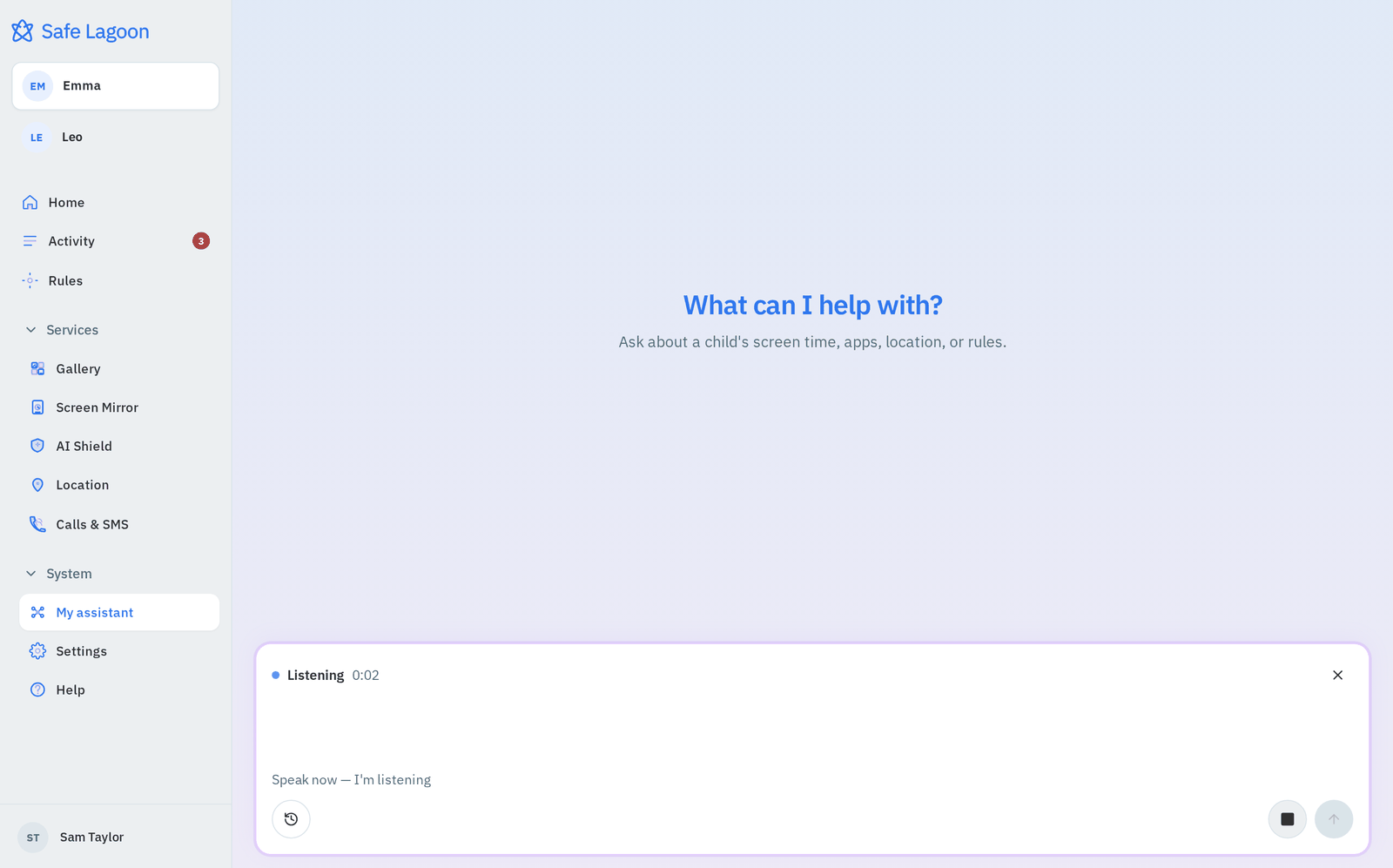
Busy hands? Tap the microphone and say it instead: the box shows that it’s listening, and when you’re done you stop the recording to send your request. Voice is handy when you’re cooking dinner or have a toddler on your hip.
What happens when you ask: a walkthrough
Here’s what a typical request looks like from start to finish, using a daily limit as the example.
1. You ask. Type “Give Emma two hours a day at weekends”, or start from the built-in suggestion “Set a bedtime for school nights”.
2. The assistant checks your current setup. It looks at Emma’s existing rules, so it can add to them or edit them rather than create a duplicate. It may show what it’s checking as it works.
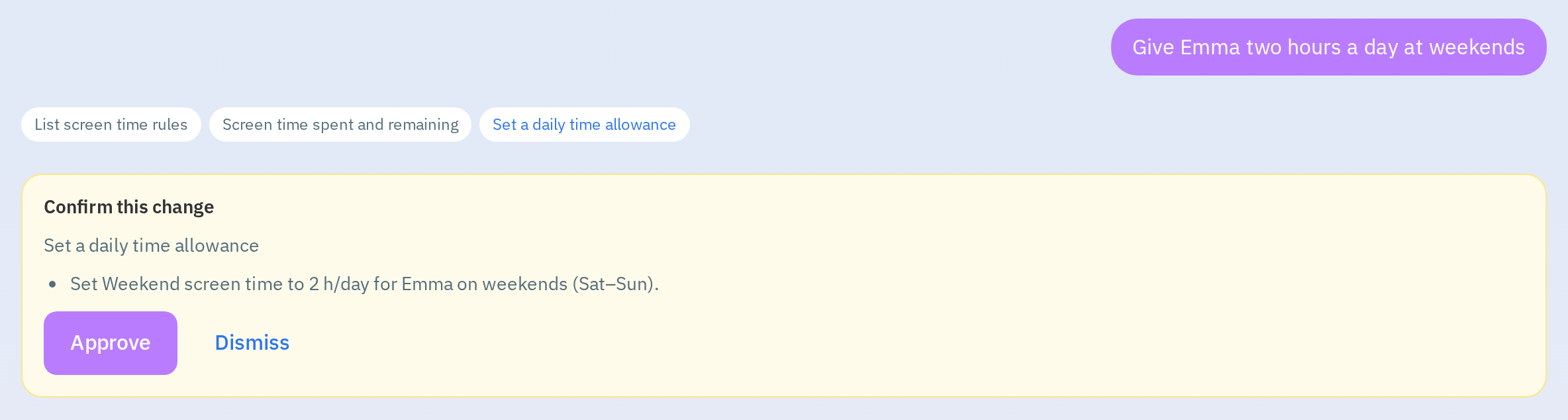
3. You get a confirmation card. Before anything changes, a card titled Confirm this change sums up what the assistant is about to do: which child, which days, which times, and what gets blocked or limited. Read it like you’d read a receipt.
4. You decide. Tap Approve to save the change, or Dismiss to drop it. Nothing is saved until you tap Approve, and sending a new message cancels the pending card. Want something slightly different? Just say so (“Make it 90 minutes instead”) and you’ll get a fresh card.
5. The rule takes effect. Once you approve, the new rule reaches your child’s Android phone the next time it syncs. You’ll find it in the usual place on the Screen Time page.
A tip for school nights: ask for “Sunday to Thursday”
This is the one thing worth remembering. An overnight window belongs to the day it starts. A 21:00 to 07:00 window set for “Monday” runs from Monday night into Tuesday morning.
That’s why “school days” or “weekdays” (which mean Monday to Friday) gets bedtime slightly wrong. It covers Friday night, when there’s no school the next day, and leaves out Sunday night, when there is. The built-in suggestion “Set a bedtime for school nights” also uses Monday to Friday.
So for nights before school, ask for Sunday to Thursday:
“Set a bedtime from 21:00 to 07:00, Sunday to Thursday.”
And whichever way you ask, glance at the days on the confirmation card before you tap Approve. If they’re off, say “Change it to Sunday to Thursday” and approve the corrected card.
Small habits that make it work
The assistant saves you clicks, but the rules still work best when your child understands them. The habits from our bedtime phone guide still apply: agree “phones down” time together, charge phones outside the bedroom, and decide in advance how your child can ask for more time. If you’re unsure how much is reasonable for your child’s age, our article on how much screen time is really too much is a good starting point. And if new downloads are the bigger battle in your house, see 5 ways to block kids from installing apps on Android.
Get started tonight
- Install the orange SafeLagoon Parent app from Google Play.
- Install the blue SafeLagoon app on your child’s Android phone. The download page has the right link for each phone.
- Start your 3-day Premium trial to unlock My assistant while the trial is active.
- Open app.safelagoon.com, choose My assistant in the sidebar, and ask for your first rule.
Try My assistant: start your 3-day Premium trial
QuestionsFAQ
What is My assistant in SafeLagoon?
A: My assistant is a setup helper in the SafeLagoon parent portal at app.safelagoon.com. You type or say what you want, such as a bedtime, a daily limit or an app block, and it prepares the change for you.
Does the assistant change my child’s settings without asking me?
A: No. Every change appears first on a “Confirm this change” card that sums it up. Nothing is saved until you tap Approve. Tap Dismiss and nothing is saved; sending a new message also cancels the pending card.
How do I set a bedtime for school nights with My assistant?
A: Ask for the nights before school by name, for example “Block the phone from 21:00 to 07:00, Sunday to Thursday.” An overnight window belongs to the day it starts, so “school days” or “weekdays” (Monday to Friday) would include Friday night and skip Sunday night. Check the days on the confirmation card before you approve.
Which plan includes My assistant?
A: My assistant is included in Premium, and in the 3-day Premium trial while it’s active. Without Premium (or once the trial ends), My assistant stays in the menu but opens a locked page, “My assistant is not on this plan”, with an Add My assistant button to upgrade; the chat doesn’t load.

Writes for the Safe Lagoon blog · More articles on the blog