In this article · 9 sections
If the job is a free daily limit and a bedtime on an Android phone or a Chromebook, Google Family Link already does it. If you also want a schedule that survives a hallway negotiation, SMS activity, or an optional screenshot when something looks risky, that is the part Family Link does not sell. You can keep both.
The choiceThe short answer
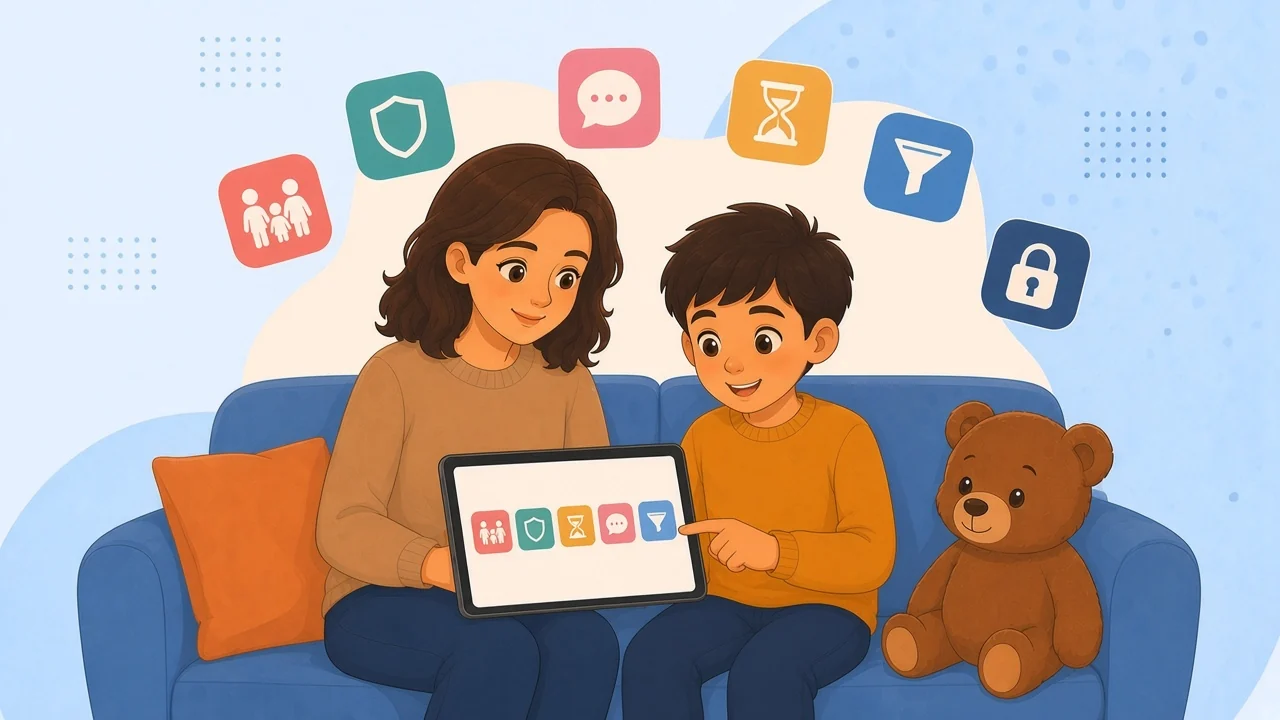
Use Family Link when free screen time on Android or Chromebook is the whole job. It supervises a child's Google Account and is strongest there. Daily limits, downtime, lock now, and bonus time are in Google's screen-time help. The price is zero.
Use Safe Lagoon when the Android phone is the device in the argument. You get a schedule, app and game blocks, and call and SMS activity on Android through a free Device Monitor add-on, with the limits on our price page. Screenshots, or an alert when a moment looks risky, sit on higher plans. The web filter is free, with no end date stated on that page.
Keep Family Link on the Google Account, including the Chromebook, and add Safe Lagoon on the phone. The wider map is parental control apps compared. The leaving checklist is a Family Link alternative on Android.
At a glanceSide by side
| Job | Family Link | Safe Lagoon |
|---|---|---|
| Daily limit and bedtime | Yes Free. Limit is per device | Yes On the Android phone |
| SMS or chat text | No | Partial SMS activity on Android |
| Screenshot of the screen | No | Screen Mirror or AI Shield, Android only |
| Price | Free | Web filter free. Premium $6.99/mo |
Safe Lagoon shows regular SMS on Android. It does not turn WhatsApp, Instagram, Snapchat, TikTok, or Roblox chat into a transcript. Family Link does not show those words either. The longer list is what Family Link cannot see.
Give it creditWhat Family Link already does well
For a supervised Google Account, Family Link is the control Google built. Several pieces are better left there because they are native.
You can set a daily screen-time limit and downtime for bedtime. You can lock or unlock now without editing the schedule. You can give bonus time without changing the daily limit. On a locked Android phone, apps stop except the ones marked unlimited. The child can still answer a call and use Emergency.
You also get app activity, Play install approval, location of the Android device, and SafeSearch plus Chrome controls.
Two limits are part of the design. Google says a daily limit applies per device. Two hours means two hours on each Android device or Chromebook, not a shared pool. A phone and a Chromebook are two separate afternoons.
Above the local age of consent, often 13, supervision is optional. A teen can ask to stop it, and you must approve that request until they turn 18. School accounts on the device are outside Family Link supervision. A Chromebook signed in with a school Google Account does not inherit your family rules.
If none of those edges is your problem, a paid app will not improve a free lock you already trust.
The gapWhat you still cannot see
Family Link does not show SMS text. It does not show WhatsApp, Instagram direct messages, Snapchat, or TikTok chats. It is not a screenshot tool. The report can say Messages was open. It cannot say what the message said.
On Android, Safe Lagoon plus Device Monitor shows call and SMS activity. The price page calls that activity, not a full chat archive, and says deleted messages are not guaranteed. We cannot block incoming calls or SMS. The Roblox settings checklist states the same boundary: regular SMS, not Roblox chat, not other chat apps.
A picture is another plan, Android only. Screen Mirror is $14.99 a month, or $12.50 a month billed yearly. It includes Premium plus screenshots grouped by app and time. Gallery, the camera roll, is already on Premium. Screen Mirror is not Gallery, and it is not AI Shield.
AI Shield is $19.99 a month, or $16.58 a month billed yearly. It adds an alert when something looks risky, often with a screenshot of that moment. It is not a chat archive and not every ordinary screen. The three are separated in AI Shield, Screen Mirror, and Gallery.
If you only wanted the words inside WhatsApp, neither column is the purchase.
PriceWhat you would pay
Family Link is free. Bedtime is not locked behind a trial.
Safe Lagoon's web filter is free. The price page says "Always. Forever." The same figures are in what the plans cost and on the price page.
Premium is $6.99 a month, or $5.83 a month billed yearly, for five child profiles. Parent apps do not count toward the five. The plan includes daily limits and schedules, games and app blocking, the Instant Message Monitor listed on the price page, Android call and SMS history through Device Monitor, GPS and geofences, a YouTube monitor, the web filter, custom alerts, Gallery, the parent app, and My assistant.
My assistant is the plain-language path. You type a rule, you see a confirmation card, and nothing applies until you tap Approve. A bedtime window is the usual first one. It comes with Premium and above. The price page shows a 7-day trial.
On iOS, Safe Lagoon can pause and schedule third-party apps, but it cannot show per-app usage the way Android does. iCloud call and text logging is experimental and not guaranteed.
A scenarioA Tuesday night
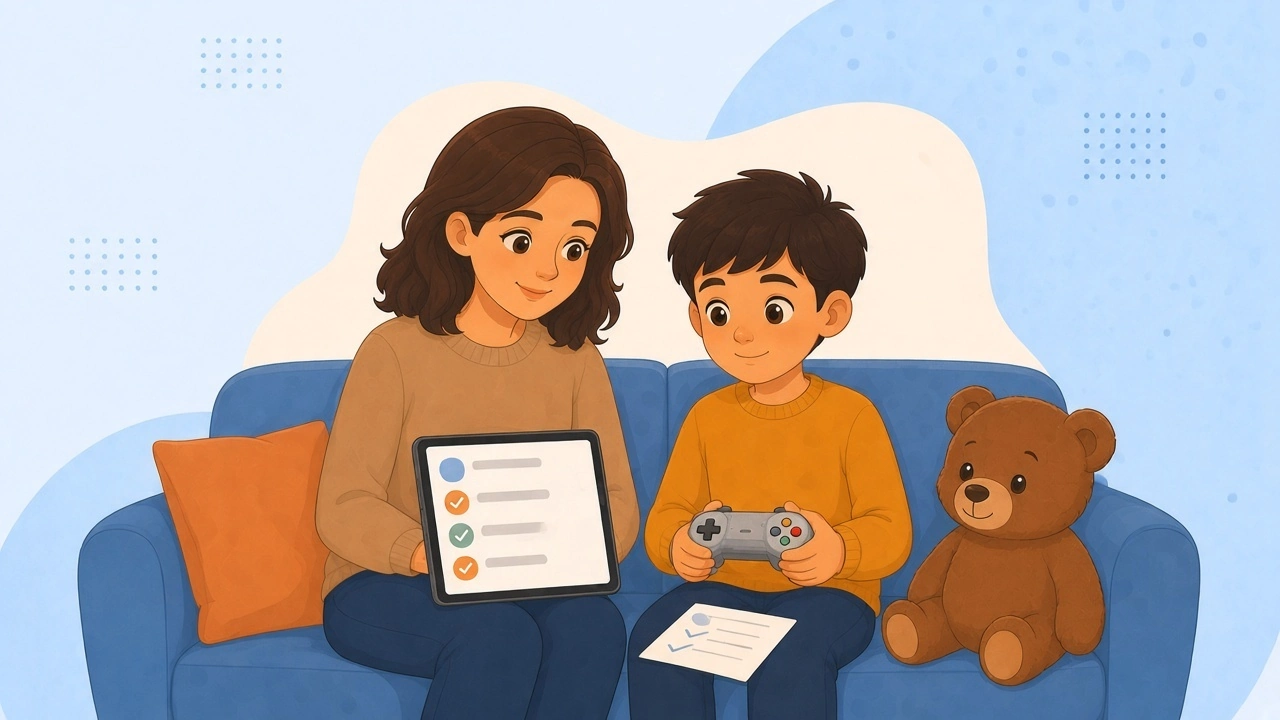
It is 8:40 on a Tuesday. Downtime is set for 9. Your child is still in a game. The afternoon ran long on the Chromebook, and because the limit is per device, the phone still has its own two hours.
You lock the phone. Apps stop, except unlimited ones, and calls still work. They ask for bonus time for one more round. You give it. The daily limit is unchanged. At 9:25 the screen is lit. Tomorrow will look the same, because the hallway did not change the rule.
Write the other version on Sunday. A schedule can turn games off at 8 on school nights until morning. Build it from how to create a schedule, or type the bedtime into My assistant and tap Approve. An exception is a request, not a rewrite of the week.
If the child app disappears by Wednesday, Device Owner is the strict option. The child app cannot be disabled or uninstalled without a factory reset. Steps are in tamper-resistant setup. Mention it on Sunday, before anyone is losing a match.
Family Link can keep approving Play installs and watching the Chromebook. Tuesday's fight was the second device's fresh two hours.
Use bothKeep Family Link and add Safe Lagoon
Leave the Google Account supervised. Family Link keeps Play approval, SafeSearch, Chrome controls, Android location, and the Chromebook rules. Safe Lagoon does not replace that account, and it does not enroll a school Google Account that Family Link cannot supervise.
Install the blue child app on the Android phone as your child. Install the orange parent app on your phone. It does not use a child profile. Then add the rule the hallway keeps winning. Daily time is a time limit. One title is blocked or allowed on its own.
Tell them the split once. Family Link is Google and the Chromebook. Safe Lagoon is the phone. Device Monitor, if you turn it on, is SMS activity, with the archive limits above. Pictures of a risky moment are AI Shield. Read how to set it up before you move plans. Premium does not require pictures.
Overlap the two bedtimes for a week, then turn one clock off.
StayWhen Family Link is the better choice
Stay with Family Link alone when the device is a Chromebook, or when a free bedtime lock is the entire request. Our full controls are on Android. We do not put a child agent on a Chromebook.
Stay if you want Play approval and Chrome controls without a second subscription that only copies screen time. Stay if the only deal your teen will keep is the Family Link one they already accepted.
Stay if you hoped to buy WhatsApp or Instagram transcripts. We do not sell that, and Family Link does not show it.
Add Safe Lagoon when the Android phone is still on at 10, the daily limit doubles across devices, or you need SMS text and the report stops at the app name. You can try that without uninstalling Family Link.
QuestionsFAQ
Should I delete Family Link if I install Safe Lagoon?
No. Keep Family Link for Play approvals, Chrome controls, or a Chromebook. Add Safe Lagoon on the Android phone for schedules and, if you want them, SMS activity or screenshots. Drop the extra bedtime after a week.
Does Safe Lagoon show the chats Family Link misses?
It shows regular SMS on Android with Device Monitor. It does not show WhatsApp, Instagram, Snapchat, TikTok, or Roblox chat. Deleted messages are not guaranteed. We cannot block incoming calls or SMS.
Is Family Link's daily limit shared across phone and Chromebook?
No. Google says the limit applies per device. Two hours on the phone and two hours on the Chromebook are separate. A phone schedule does not fix the Chromebook.
What does Safe Lagoon cost if I only want a web filter?
The web filter is free, with no end date on the price page. Premium is $6.99 a month or $5.83 a month billed yearly, for five child profiles. Screen Mirror and AI Shield cost more and are Android only.
Prices and feature lists were taken from each company's own site on 14 November 2026 and can change. Safe Lagoon is not affiliated with Google or Qustodio. Names are trademarks of their owners.

Writes for the Safe Lagoon blog · More articles on the blog