In this article · 8 sections
- What the CyberSafeKids survey found
- Why the phone at night is a special problem
- Bedtime phone rules that actually work
- How to lock your child’s phone at bedtime on Android with SafeLagoon
- Or just ask: set bedtime in one sentence with My assistant
- Why this works on the phone your child already has
- Get started tonight
- FAQ
If your child’s phone spends the night on their pillow, you are far from alone. A new survey from the Irish online safety charity CyberSafeKids found that more than half of children under 12 have smartphones or other connected devices in their bedrooms overnight, and about a third say they have no restrictions on what they do online (The Irish Times).
The good news: bedtime is one of the easiest screen-time battles to win, because it happens at the same time every night. Here’s what the research says, bedtime phone rules that work, and how to lock your child’s Android phone at bedtime automatically, even by simply asking our assistant.
What the CyberSafeKids survey found
CyberSafeKids questioned 1,200 children after the return to school, and published the results ahead of CyberBreak 2026, its HSE-supported 24-hour digital switch-off. The figures that matter most for bedtime:
- 56% of 8–12-year-olds and 69% of 12–15-year-olds keep devices in their bedrooms overnight (Irish Examiner).
- 20% of 8–12-year-olds and 37% of 12–15-year-olds say they fall asleep with their devices (Irish Examiner).
- More than a third of 8–12-year-olds, and two-thirds of 12–15-year-olds, have no time restrictions on their online activity (Irish Examiner).
- The evening is peak time: 69% of 8–12-year-olds and 82% of 12–15-year-olds go online in the evening (RTÉ).
- 23% of 12–15-year-olds go online as soon as they wake up (Irish Examiner).
“Screens in bedrooms, especially overnight, affect not only sleep but overall wellbeing,” said CyberSafeKids chief executive Alex Cooney. “Children need clear boundaries around device use at home.”
The survey also holds up a mirror: more than half of young people said their parents are on devices “a lot of the time” or “all the time” when they’re together. Bedtime rules work best as family rules.

Why the phone at night is a special problem
At night a phone competes with nothing. In a dark bedroom there’s no natural stopping point: one more video, one more message, one more round. Kids also tell researchers they find it hard to switch off from products designed to keep them online: 18% of 8–12-year-olds and 20% of 12–15-year-olds said so (RTÉ).
A rule that switches on by itself every night removes the nightly negotiation.
Bedtime phone rules that actually work
You don’t need software to start. These habits help on their own and work even better with a schedule behind them.
1. Agree a “phones down” time together
Pick a time 30–60 minutes before lights out, and agree it with your child rather than announcing it. Kids follow rules they helped make.
2. Charge phones outside the bedroom
A family charging spot in the kitchen or hallway is the simplest bedtime rule there is. If the phone is the alarm clock, buy an alarm clock.
3. Different nights, different rules
Many families allow a later cut-off on weekends. A window that runs until breakfast (say 21:00 to 07:00) also keeps the first minutes of the morning screen-free.
4. Model it yourself
Put your own phone on the charger at the same time, at least on school nights. Your kids notice.
5. Leave a door open for real needs
Decide in advance how your child can ask for extra time, so exceptions don’t turn into arguments.
How to lock your child’s phone at bedtime on Android with SafeLagoon
SafeLagoon is parental control for Android. You install the blue SafeLagoon app on your child’s phone or tablet, and you manage everything from the orange Parent app on your phone or from the web portal at app.safelagoon.com. Here’s how a bedtime routine maps to its features.
Bedtime schedules
A schedule turns categories of apps off between two times on the days you choose, and you can have several per child, for example bedtime, school and dinner. In the Parent app, open your child’s profile, go to App Control / Screen Time → schedules, tap + → Create Schedule, pick the categories (Games, Media, Social and so on), name it, set From / To, choose the days and save. (Help: How to create a schedule)
One thing to know: apps you mark as always allowed ignore schedules, so keep that list short.
Daily time limits
For the hours before bed, a time limit caps how long a category or a single app can be used each day. In the Parent app, tap + → Create Screen Time Rule, then pick a category or app, the days and the allowed time. (Help: How to set up time limits for apps)
Lock everything right now
Need the phone off right now? Block all / pause from the parent dashboard blocks every app on the device until you turn it off. Finn, the home screen of the child app, shows your child whether a schedule or block-all is on. (Help: An app is blocked)
“Can I have more time?”
When your child hits a block or a daily limit, they can ask for more time from the child app. The request shows up for you to approve (and choose how long) or deny, and extra time is temporary: when it ends, your rules apply again.
Make it hard to switch off
Set a PIN on the Parent app so nobody can undo your rules from your phone (Help: PIN Protect your Parent app). The optional Tamper-resistant setup (Device Owner) means SafeLagoon can’t be disabled or uninstalled without a factory reset (Help: Tamper-resistant setup).
Or just ask: set bedtime in one sentence with My assistant
Clicking through menus at 9 pm is the last thing a tired parent wants. So the SafeLagoon web portal includes My assistant, a setup helper for parents. Open app.safelagoon.com, choose My assistant in the sidebar, and type or say what you want, for example:
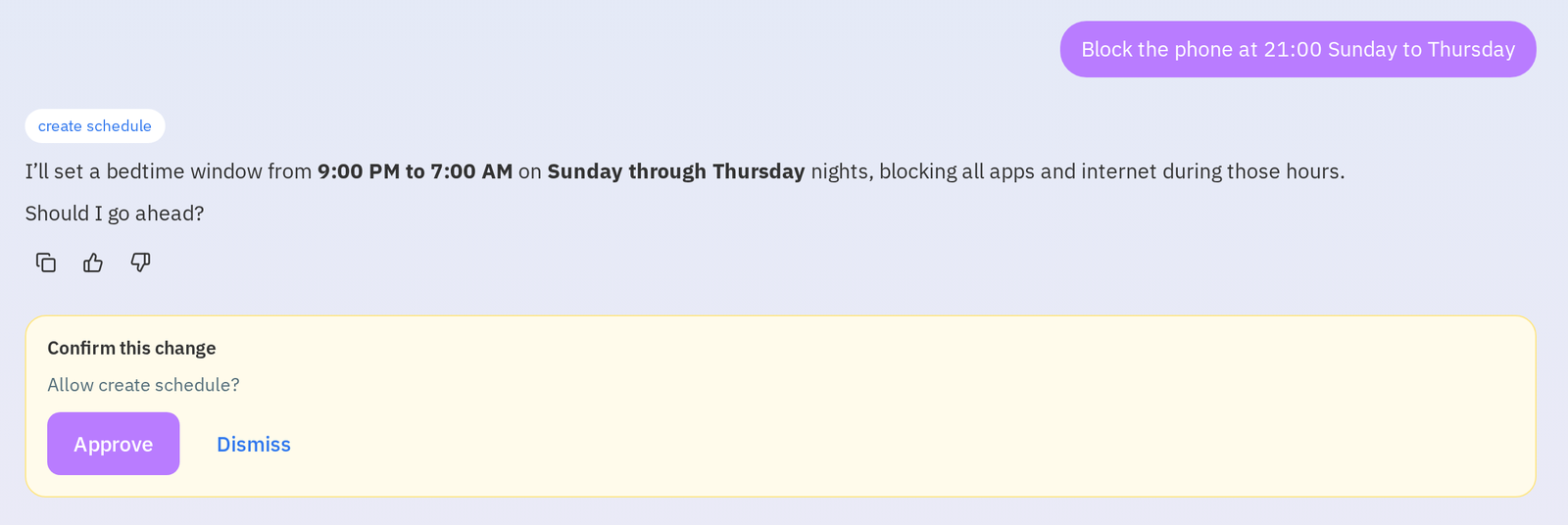
“Block the phone at 21:00 Sunday to Thursday”
The assistant turns that into a blocking window, including overnight windows that cross midnight. A window can block all apps, just the internet, or calls. There’s even a built-in suggestion to start from: “Set a bedtime for school nights.” Tap it and the assistant suggests a bedtime for Monday to Friday based on your child’s age (starting between 19:30 and 21:30 and ending at 07:00) that blocks all apps. A bedtime set by the assistant shows up in the same Schedules list on the Screen Time page at app.safelagoon.com, where you can edit it.
Before anything changes, you see a confirmation card that sums up the change, and nothing is saved until you tap Approve. Changes apply to your child’s Android phone straight away.
What else you can ask it to do:
- Change, pause or delete a window: “Move bedtime to 21:30 on Fridays” or “Pause the bedtime window” (a paused window stays off until you switch it back on).
- Set or remove a daily limit: “Give Leo two hours a day at weekends.”
- Lock the phone now (or switch on play mode), block or unblock a specific app.
- Answer “more time” requests: approve 15, 30 or 60 minutes, or deny.
- Get quick answers: screen time left today, top apps this week, or a weekly report.
My assistant is part of SafeLagoon Premium and is included in the trial. It accepts voice prompts from your microphone, and the portal is available in 13 languages.
Why this works on the phone your child already has
Built-in controls change with operating-system updates. Apple’s revamped Screen Time in iOS 27 requires every device in a Family Sharing group to run the matching version 27 software before the new controls can be used (Apple Support), and The Verge reported that some families have found the rollout hard to enable; Apple said it is “working to resolve delays some families are seeing” (The Verge).
SafeLagoon works on Android today: install the child app on your child’s phone and your rules apply to that phone, without updating every other device in the household first.
Get started tonight
- Install the orange Parent app from Google Play.
- Install the blue SafeLagoon app on your child’s Android phone: the download page has the right link for each phone.
- Create a bedtime schedule, or open My assistant at app.safelagoon.com and ask for one.
- Agree the rule with your child, and put your own phone on the charger too.
More ideas: How Much Screen Time Is Really Too Much?, 4 Great Device Habits to Keep Your Family Close and Smartphone Addiction in Teens.
QuestionsFAQ
What time should kids put their phone away at night?
There’s no single right time. A practical rule is phones down 30–60 minutes before lights out, with an earlier cut-off on school nights.
Can I lock my child's Android phone automatically at bedtime?
Yes. A SafeLagoon schedule turns app categories off between two times on the days you choose. Or ask My assistant at app.safelagoon.com to set up an overnight window like 21:00 to 07:00.
Can my child still ask for more time?
Yes. They can request more time in the child app; you approve (and pick how long) or deny it, and extra time ends automatically.
Is My assistant included in every plan?
My assistant is part of SafeLagoon Premium and available during the trial. On the free plan you’ll see an option to upgrade.

Writes for the Safe Lagoon blog · More articles on the blog